
Common JSON Formatting Errors and How to Fix Them
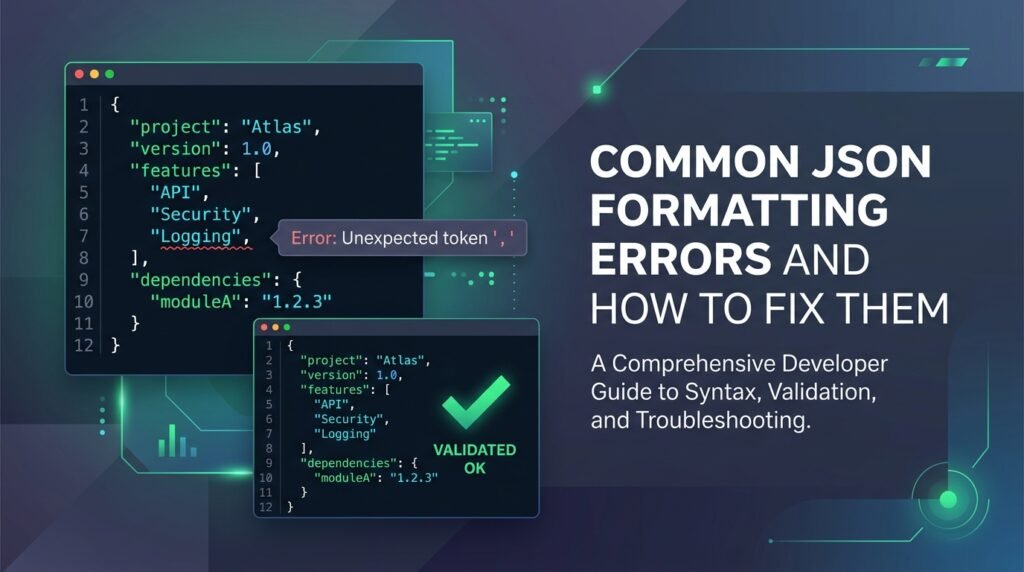
JavaScript Object Notation (JSON) is the universal data format powering modern web APIs, server configurations, database exports, and microservice communications. While JSON was designed to be human-readable and lightweight, its strict syntactic specification leaves zero tolerance for mistakes. Encountering common JSON formatting errors—such as a solitary trailing comma, unquoted dictionary keys, or mismatched curly braces—can bring data pipelines to an abrupt halt. Learning to diagnose and resolve these common JSON formatting errors quickly is essential for developers, analysts, and system administrators.
Unlike standard JavaScript, which permits relaxed syntax like single quotes, comments, and trailing commas, the official ECMA-404 JSON Data Interchange Standard and IETF RFC 8259 specifications enforce rigorous constraints. Diagnosing these subtle syntax discrepancies by eye in minified payloads or multi-thousand-line documents is notoriously difficult.
In this comprehensive guide, we examine the nine most frequent common JSON formatting errors, illustrate exact before-and-after corrections, and explain how to validate and format payloads instantly using EzzDo’s free, client-side JSON Formatter and Validator without sending private data to external servers.
Table of Contents
The 9 Most Common JSON Formatting Errors (And How to Fix Them)
Let’s dissect each of the nine primary common JSON formatting errors that developers and analysts face when writing, parsing, or exporting JSON data, along with exact syntax rules to fix them.
1. Using Single Quotation Marks Instead of Double Quotes
Using single quotation marks instead of double quotes is one of the most common JSON formatting errors made by JavaScript, Python, and PHP developers. While single quotes are entirely valid in Python dictionaries and JavaScript objects, the JSON standard explicitly mandates standard ASCII double quotes (") to prevent common JSON formatting errors across platforms.
{
  'name': 'EzzDo',
  'type': 'Tools'
}
Single quotes produce an Unexpected token ' parser error.
{
  "name": "EzzDo",
  "type": "Tools"
}
Always enclose keys and string literals in double quotes.
2. Missing Quotation Marks Around Property Names
Modern JavaScript allows object literal keys to be written without quotation marks (for example, { id: 1, active: true }). Because developers write object literals constantly, copying them directly into configuration files creates another of the top common JSON formatting errors. Standard JSON requires every property name to be enclosed in double quotes to avoid these common JSON formatting errors.
{
  name: "EzzDo",
  active: true
}
Unquoted identifiers are illegal in standard JSON.
{
  "name": "EzzDo",
  "active": true
}
Every property name is wrapped in double quotes.
3. Leaving a Trailing Comma
Trailing commas (commas following the final element of an array or the last key-value pair of an object) are among the most pervasive common JSON formatting errors in modern web services. While modern JavaScript (ES5+), Python, and Go allow them, standard JSON strictly forbids trailing commas; eliminating them resolves these common JSON formatting errors instantly.
{
  "name": "EzzDo",
  "category": "Tools",
}
Trailing comma after “Tools” triggers Unexpected token }.
{
  "name": "EzzDo",
  "category": "Tools"
}
No comma exists after the final object property.
The exact same rule applies to arrays. In the array below, leaving a comma after the final string represents another variation of these common JSON formatting errors:
[ "PDF", "Image", "Text" ] // Correct: No trailing comma after "Text"4. Missing a Comma Between Properties or Array Items
Just as an extra comma causes a failure, omitting a necessary comma between properties is one of the most frustrating common JSON formatting errors to trace manually. When multiple key-value pairs are listed on separate lines, forgetting the delimiting comma is among the most frequent copy-paste common JSON formatting errors.
{
  "name": "EzzDo"
  "active": true
}
Missing comma between properties throws Unexpected string.
{
  "name": "EzzDo",
  "active": true
}
A single comma cleanly separates the two attributes.
5. Using Unsupported Data Types and Values
JSON only supports a strict subset of primitive and compound data types. According to the MDN JSON specification, the only allowed values are:
- Strings: Enclosed in double quotes (e.g.,
"hello"). - Numbers: Integer or floating-point (e.g.,
42,3.14,1e-5). Hexadecimal notation (like0xFF) is not supported. - Objects: Key-value collections wrapped in
{ }. - Arrays: Ordered lists wrapped in
[ ]. - Booleans: Lowercase
trueorfalse. (Not capitalized like Python’sTrue/False). - Null: The lowercase keyword
null.
Special values common in programming languages—including undefined, NaN, Infinity, function declarations, and raw dates—produce severe common JSON formatting errors during parsing. Ensuring your data models only emit supported primitives protects your systems against these common JSON formatting errors.
{
  "score": NaN,
  "result": undefined,
  "flag": True
}NaN, undefined, and True are unsupported tokens.
{
  "score": null,
  "result": null,
  "flag": true
}
Use null for missing data and lowercase booleans.
6. Adding Comments to JSON Documents
Unlike languages like JavaScript (// or /* */), Python (#), or HTML, standard JSON does not support comments of any kind. Attempting to comment out config lines is one of the most frequent common JSON formatting errors encountered in development environments, causing parsers to halt with immediate syntax exceptions.
If you need to include human-readable metadata or documentation inside your JSON data without causing common JSON formatting errors, provide it as an explicit attribute such as "_comment" or "description":
{
  // User account active status
  "active": true
}
Comments throw an immediate Unexpected token / error.
{
  "_comment": "User account active status",
  "active": true
}
Documentary fields travel safely as regular string properties.
7. Forgetting to Escape Special Characters and Slashes
Whenever a string literal contains a literal double quote or a backslash, you must escape it using a preceding backslash (). Failure to escape nested quotes causes the JSON parser to conclude the string prematurely, leaving following characters unparseable.
Windows file paths with backslashes (such as C:UsersDocuments) are particularly notorious culprits. In JSON, a single backslash begins an escape sequence; to represent a literal backslash, you must write two: \.
{
  "quote": "She said "Hello"",
  "path": "C:UsersDocuments"
}
Unescaped quotes break the token boundary; single U is invalid escape.
{
  "quote": "She said "Hello"",
  "path": "C:\Users\Documents"
}
All internal quotes and backslashes are properly escaped.
8. Mismatched Braces or Brackets
Objects are delineated by curly braces ({ }), while arrays are enclosed in square brackets ([ ]). In deeply nested payloads, bracket asymmetry creates tricky common JSON formatting errors that can obscure hundreds of subsequent lines.
{
  "tags": [ "PDF", "Converter" }
]
Array opened with [ cannot be closed with }.
{
  "tags": [ "PDF", "Converter" ]
}
Every opening character is paired with its symmetrical counterpart.
9. Placing Multiple Top-Level Values in One Document
A valid JSON document must consist of exactly one single root entity—typically one root object { } or one root array [ ]. Pasting multiple discrete objects adjacent to one another triggers common JSON formatting errors in standard parsers; enclosing them in a single array resolves these common JSON formatting errors immediately.
{"id": 1, "tool": "Merge"}
{"id": 2, "tool": "Split"}
Multiple root objects produce Unexpected non-whitespace character after JSON.
[
  {"id": 1, "tool": "Merge"},
  {"id": 2, "tool": "Split"}
]
Individual records are neatly wrapped in a single root array.
Summary Cheat Sheet: Invalid vs. Valid JSON
To help you quickly diagnose and resolve common JSON formatting errors during development or debugging sessions, keep this reference cheat sheet at your fingertips. It summarizes the most frequent common JSON formatting errors alongside their valid corrections:
| Error Category | Invalid Example | Valid Correction | Root Cause |
|---|---|---|---|
| Quotes | {‘key’: ‘val’} | {“key”: “val”} | JSON demands standard double quotes |
| Keys | {key: “val”} | {“key”: “val”} | All object keys must be quoted strings |
| Trailing Comma | {“a”: 1, } | {“a”: 1} | No trailing comma allowed after final item |
| Missing Comma | {“a”: 1 “b”: 2} | {“a”: 1, “b”: 2} | Properties must be comma-delimited |
| Illegal Values | {“val”: undefined} | {“val”: null} | Only string, number, object, array, bool, null |
| Comments | { // comment “a”: 1 } | {“_note”: “comment”, “a”: 1} | No comments exist in standard JSON spec |
| Escaping | {“p”: “C:\Users”} | {“p”: “C:\\Users”} | Quotes and backslashes must be escaped |
| Roots | {“a”:1} {“b”:2} | [{“a”:1}, {“b”:2}] | Must have exactly one root object or array |
How to Diagnose and Fix Common JSON Formatting Errors in Your Browser
Tracking down an unclosed parenthesis or misplaced comma across a 5,000-line payload manually is a recipe for wasted hours. Using an interactive formatter pinpoints common JSON formatting errors down to the exact line and column instantly.
Follow these simple steps using EzzDo’s free, browser-based JSON Formatter and Validator to eliminate common JSON formatting errors in seconds:
- Open the Utility: Launch the EzzDo JSON Formatter and Validator in your desktop or mobile browser.
- Paste Your Payload: Paste your raw or minified JSON text into the main code editor window.
- Validate or Format: Click Format JSON to instantly beautify with standard two-space indentation, or click Validate to inspect the payload structure.
- Review Pinpointed Errors: If the document contains common JSON formatting errors, the parser immediately flags the exact line number, column index, and error type (e.g.,
Unexpected token '}' at line 42, col 18). - Fix and Copy: Apply the necessary fix directly in the browser editor and click Copy Formatted to take your clean, verified JSON wherever you need it.
Because EzzDo’s developer utilities run completely client-side in your local browser sandbox (just like our private in-browser PDF tools), your payload is never uploaded to a remote server. This guarantees complete confidentiality when inspecting sensitive application configs, JSON web tokens, or enterprise database records.
Formatting vs. Validation: Understanding the Difference
While often bundled together in developer toolsets, formatting and validation perform two fundamentally different operations:
- JSON Validation: An algorithmic syntax evaluation that verifies whether your text strictly conforms to RFC 8259 specifications. A validator returns a boolean truth value: valid or invalid, plus precise character positions for errors.
- JSON Formatting (Beautification): An aesthetic transformation that reorganizes already-valid JSON with structured indentation (spaces or tabs), line breaks, and bracket alignments to make nested hierarchies intuitive for human readers.
Crucial Rule: A code formatter cannot safely beautify invalid JSON. You must first resolve underlying common JSON formatting errors before the beautifier can reconstruct the object tree and generate formatted output.
Security Best Practices: Handling Sensitive Tokens & Credentials
When working with JSON configuration files (such as Kubernetes manifests, settings.json, or .env configurations converted to JSON), payloads often contain sensitive credentials, database connection strings, and API secret keys. Debugging common JSON formatting errors in these files requires strict privacy.
Security Alert: Never paste live API secret keys, production database credentials, private RSA keys, or sensitive customer records into third-party cloud formatting websites. Untrusted sites can log your clipboard contents to remote backend servers or analytics databases. Always use client-side tools like EzzDo that process data exclusively within your local browser memory, or sanitize your tokens before validation.
Need to convert your validated JSON payload into a tabular spreadsheet for business reports? Use EzzDo’s companion free JSON to CSV Converter to transform structured arrays into downloadable CSV tables without server transmission. Explore our entire suite in the Developer Tools Directory.
Frequently Asked Questions (FAQ)
What are the most frequent common JSON formatting errors?
The most frequent common JSON formatting errors in production applications include trailing commas after the last property, unquoted dictionary keys, using single quotation marks instead of double quotes, and inserting comments. Using automated linters and in-browser validators helps teams prevent these common JSON formatting errors before deployment.
Is JSON the same as a JavaScript object?
No. While JSON was inspired by JavaScript object literal notation, JSON is a strict, language-agnostic text serialization format. JavaScript objects support unquoted keys, single quotes, functions, trailing commas, undefined, and comments—none of which are permitted in standard JSON.
Can JSON contain comments?
Standard JSON (RFC 8259) does not support comments. However, variant formats such as JSON5, JSONC (JSON with Comments used in VS Code), and HJSON do support comments. If strict JSON compatibility is required, use reserved property keys like "_comment" instead.
Can a JSON document start with an array?
Yes! Under the modern RFC 8259 standard, any valid JSON value can serve as the root. While an object { } is most common, an array [ ] is equally valid and widely used for serializing lists of database records or API collections.
Does whitespace affect JSON validation?
Whitespace (spaces, tabs, and newlines) outside of string values is completely ignored by JSON parsers. It exists solely for human readability. Minifying JSON removes this whitespace to reduce network payload size without altering the underlying data.
How can I convert valid JSON into an Excel spreadsheet?
When your JSON data contains an array of objects with consistent keys, you can convert it directly to CSV format using EzzDo’s client-side JSON to CSV converter. The resulting CSV file opens immediately in Microsoft Excel, Google Sheets, or Apple Numbers.