
Create a QR Code for a URL, Text or Wi-Fi Network
Generate and test QR codes for web links, text and Wi-Fi credentials while avoiding common scanning problems.
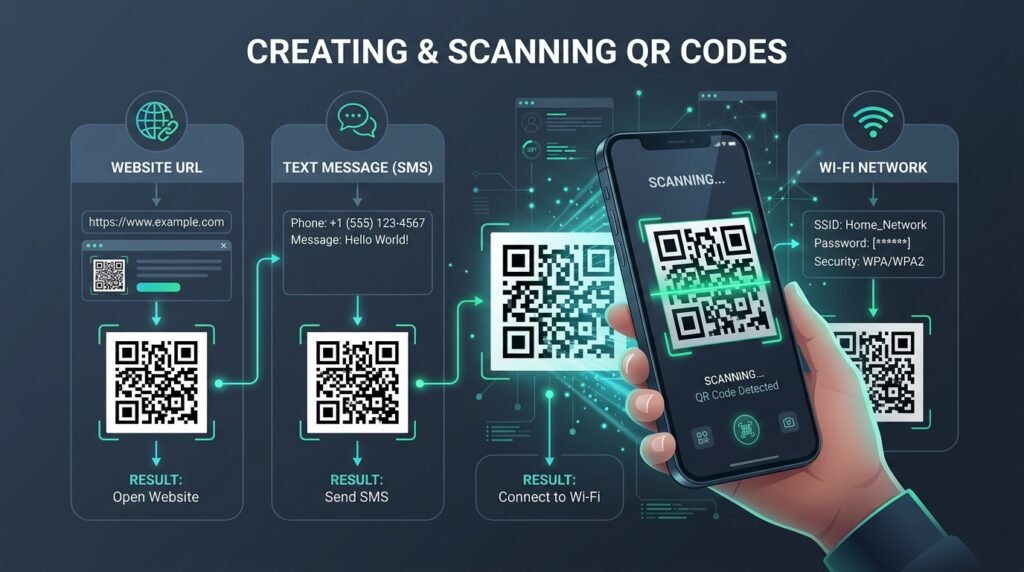
A QR code stores information in a square, machine-readable two-dimensional matrix pattern. A phone camera or barcode scanner decodes the pattern and displays stored content without typing. When you create a QR code, you bridge physical media and digital assets, allowing users to visit websites, read instructions, or access networks in seconds.
Modern mobile operating systems include native barcode decoders within camera viewfinders, eliminating third-party scanner apps. Learning how to create a QR code has become a vital technical skill for developers, marketers, and administrators. When teams deploy these 2D barcodes properly, users experience frictionless interactions across diverse physical environments.
QR codes are frequently used across commercial and personal workflows for:
- Website links
- Restaurant menus
- Event information
- Contact details
- Wi-Fi access
- Product documentation
- Payment destinations
- Printed marketing materials
You can use EzzDo’s free in-browser QR Code Generator to generate a code directly inside your web browser. Because our suite of EzzDo online tools operates client-side, your entered URLs, private notes, and sensitive network credentials remain safely on your local device without being transmitted to external logging servers.
Table of Contents
QR Code Anatomy, Module Grid and Technical Specifications
Understanding symbol construction helps troubleshoot scanning failures. Invented in 1994 by Japanese engineering firm Denso Wave, the QR code was standardized under ISO/IEC 18004. Unlike linear barcodes that store data horizontally, a 2D matrix encodes binary bits across rows and columns.
When you create a QR code, the generator arranges black and white squares, called modules, into functional geometric zones:
- Finder Patterns: Three corner concentric squares allowing cameras to detect matrix orientation and perspective tilt.
- Timing Patterns: Alternating rows and columns connecting finder squares to establish grid coordinates.
- Alignment Patterns: Smaller nested squares correcting curved or uneven print surfaces.
- Format Information: Modules near finder marks storing error correction levels and masking algorithms.
- Data Codewords: The payload area storing text, URLs, or credentials with Reed-Solomon parity bits.
- Quiet Zone: A mandatory blank border measuring at least four modules wide on all sides.

Symbol capacity ranges from Version 1 (21×21 modules) to Version 40 (177×177 modules). When you create a QR code with a compact payload, the generator selects a low version grid with larger modules that scan effortlessly. Conversely, when developers build a custom code with lengthy text, the matrix expands.
Create a QR Code for a Website URL
Encoding a web address is the primary reason organizations create a QR code. When scanned by a mobile device, the operating system parses the address and presents an interactive banner preview pointing straight to your destination.
Start with the Complete Canonical URL
Always enter the complete canonical web address, including the security protocol:
https://ezzdo.site/tools/Including https:// is critical. Without an explicit protocol prefix, scanner firmware may treat your destination as plain text or trigger an arbitrary search query instead of loading the page. Furthermore, linking directly to the canonical address prevents unnecessary server-side redirects, lowering mobile latency for visitors on cellular connections.
Step-by-Step Procedure to Create a QR Code for a URL
Follow these practical steps whenever you create a QR code for an online resource:
- Open EzzDo’s free QR Code Generator in your browser.
- Select the URL option from the configuration menu.
- Enter the complete destination address, confirming domain spelling and path structure.
- If tracking marketing campaigns, append clean UTM parameters using the UTM Link Builder.
- Choose desired export dimensions and select error correction Level M or Level Q.
- Generate the code and review the rendered pattern in the preview pane.
- Scan the live pattern with separate physical smartphones running iOS and Android.
- Download the finished image in vector SVG format for print, or PNG for digital layouts.
Always test the destination URL in an incognito window before printing. Ensure the target page returns 200 OK and loads clean mobile navigation. When webmasters create a QR code, validating endpoints beforehand prevents costly post-print revisions.
Creating a QR Code for Plain Text Messages
Beyond hyperlinks, you can create a QR code to store raw, unformatted text. When a phone scans a text payload, the operating system displays the message directly or copies it to the clipboard without launching a browser.
Practical Applications for Plain Text Payloads
Storing raw text inside physical modules is ideal where active internet connections are unavailable or unnecessary. Common examples include:
- Meeting directions: “Meeting begins at 2:00 PM in Conference Room B.”
- Hardware asset tags: Equipment serial numbers, inventory SKUs, and rack location identifiers.
- Cryptographic identifiers: Public verification keys or checksum hashes displayed for offline audits.
- Offline instructions: Emergency door combinations, facility guidelines, and locker access codes.
Managing Character Counts and Pattern Density
Keep your text strings as concise as possible. As character count increases, the generator selects higher version grids, packing hundreds of tiny modules into the same footprint. When you create a QR code for printed notices, write succinct sentences to ensure scanning stays responsive.
A dense pattern requires higher camera resolution and sharp optical focus. If a dense code is printed on a small surface, budget phone cameras will struggle to decode tiny pixels. Whenever you create a QR code containing raw text, prioritize brevity.
Creating a Wi-Fi QR Code for Network Credentials
Typing complex Wi-Fi passwords on mobile keyboards is tedious and error-prone. When you create a QR code for Wi-Fi access, visitors join your wireless network in seconds simply by pointing their camera at a desk plaque.
The Standardized Wi-Fi Connection URI Syntax
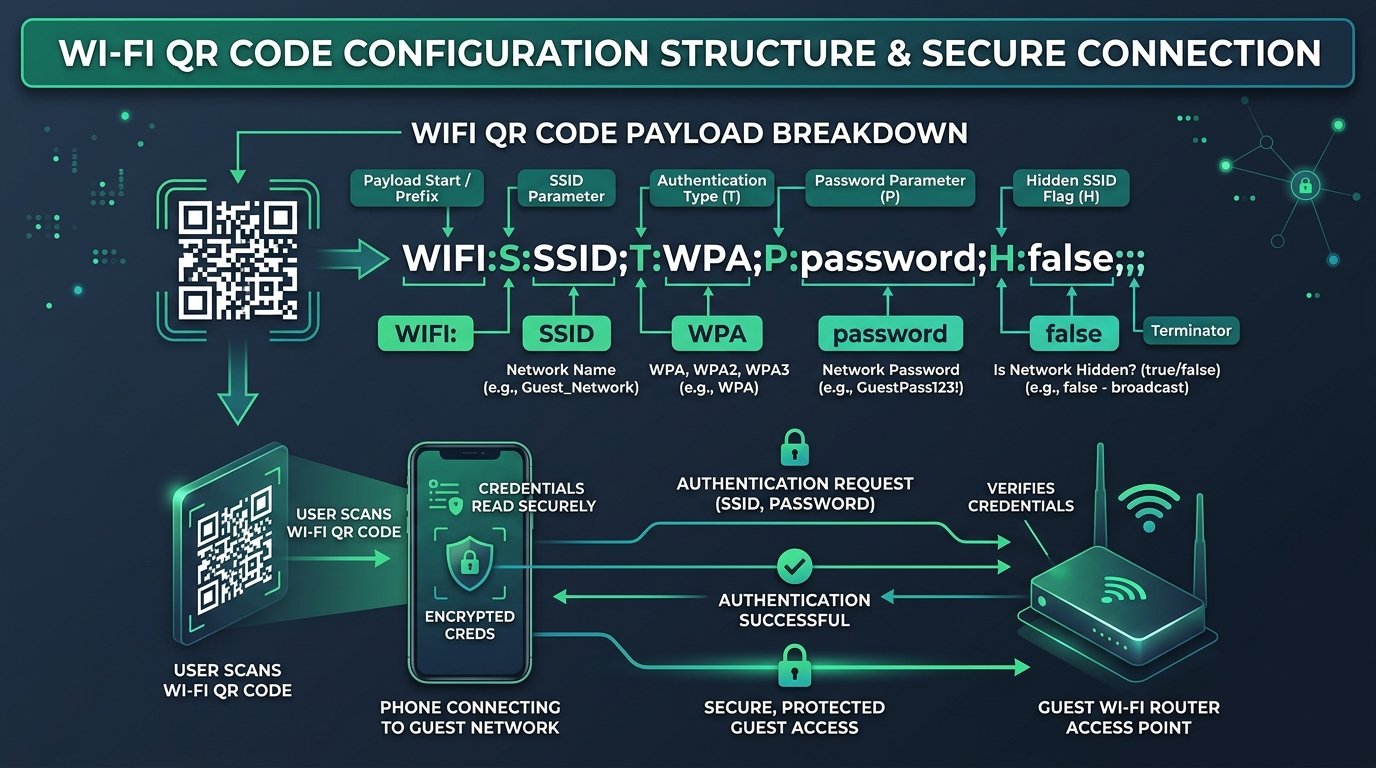
Mobile platforms recognize a standardized URI string format for automated wireless configuration:
WIFI:S:Guest_Office_Network;T:WPA;P:SecureVaultPass99!;H:false;;This payload string comprises four essential configuration components:
- S (SSID): Broadcast name of your wireless network. Case-sensitive parameter.
- T (Security Type): Protocol, such as
WPA,WEP, ornopass. - P (Password): Network passphrase with escaped semicolons and colons.
- H (Hidden Setting): Boolean flag indicating whether SSID is hidden.
Essential Wi-Fi Security Precautions
Anyone who scans a Wi-Fi QR code receives credentials in plain text. Do not display it publicly unless the network is intentionally available. To safeguard infrastructure when you create a QR code, establish an isolated guest network instead of sharing internal business networks.
Guest isolation prevents visitors from accessing internal servers, shared printers, and administration consoles. When you create a QR code for a lobby, connecting guests to a dedicated subnet delivers convenience without jeopardizing internal data.
Static vs Dynamic QR Codes: Architecture and Durability
Before launching a printing project, decide between static and dynamic architectures. Both options produce scannable matrices, but their lifespan and privacy differ. Understanding these tradeoffs allows teams to create a QR code best suited for their long-term operational needs.
| Feature | Static QR Code | Dynamic QR Code |
|---|---|---|
| Storage Location | Directly inside matrix modules. | On an intermediary redirect server. |
| Modifiability | Permanent; impossible to change once printed. | Editable; destination can be updated online. |
| Dependencies | Zero; functions indefinitely offline. | Requires active hosting account and vendor uptime. |
| Privacy | 100% private; direct connection without tracking. | Third-party vendor logs user IP, time, and device. |
| Cost | Completely free forever. | Often requires recurring monthly subscriptions. |
| Scan Analytics | None (unless using URL UTM parameters). | Built-in scan counters and geographic analytics. |
| Link Rot Risk | Immune (target website must maintain URL). | High; codes break if provider shuts down. |
A static code directly contains its destination data. Once printed, its contents cannot be changed. If the URL changes later, existing printed copies will not update. You must create a QR code anew and reprint your physical materials. However, static codes remain functional forever without recurring subscription fees.
A dynamic code routes through a redirect service that can modify the destination later. That service may track scans or stop working if the subscription lapses. When you create a QR code with EzzDo, your output is strictly static, ensuring permanent reliability and complete data privacy.
Choosing the Right Size, Distance Ratios and Error Correction
Scanning reliability depends on printed size, viewing distance, camera quality, lighting, contrast, pattern complexity, surface material, and error-correction level. When you generate a custom square symbol, calculate physical dimensions according to anticipated scan distances.
The 10:1 Distance-to-Size Formula
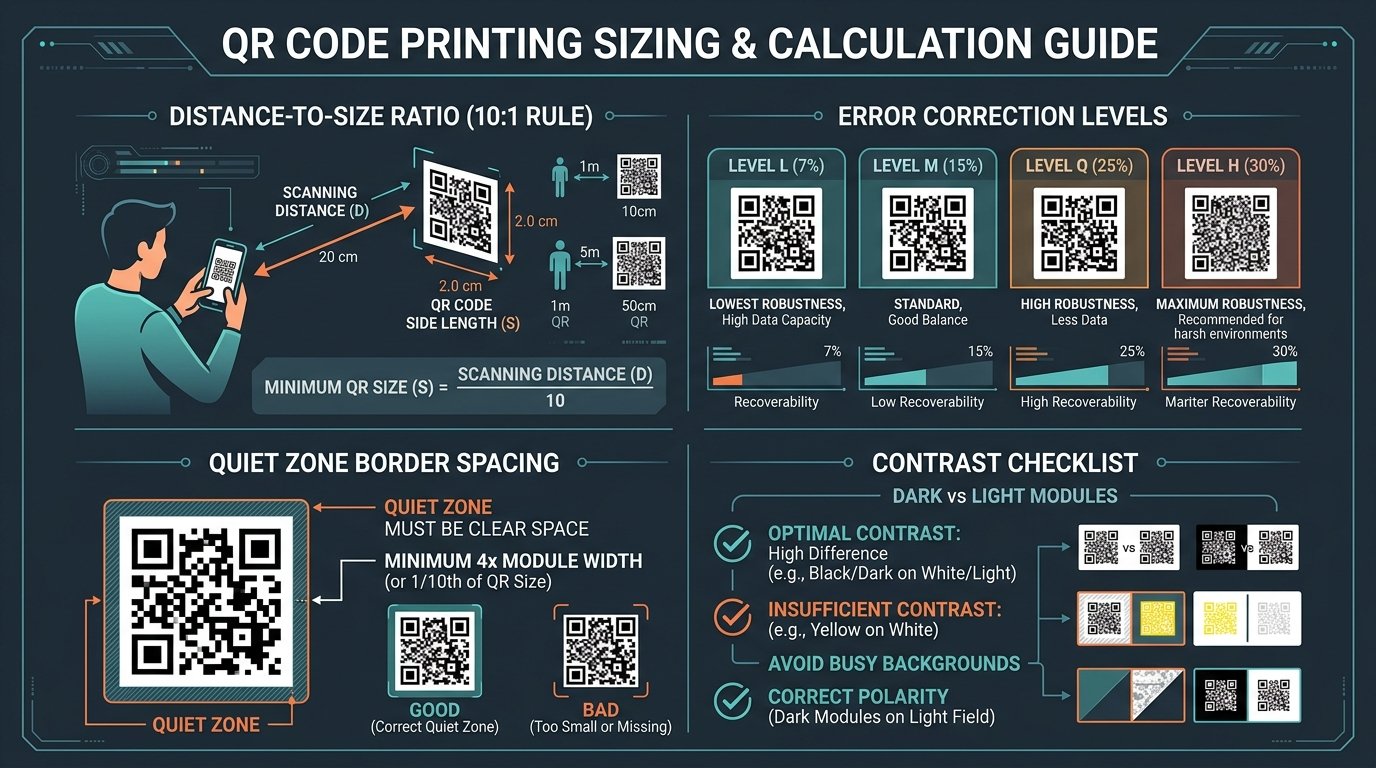
Apply the industry-standard 10:1 scanning ratio: the width of the square should measure at least one-tenth of the distance from lens to paper:
Minimum QR Code Width = Scanning Distance / 10A code intended for a business card can be smaller than one on a presentation screen. Always print a real test copy at final size before mass production:
- Business Cards (20 cm distance): Minimum width of 2.0 cm × 2.0 cm (0.8 inches).
- Tabletop Menus and Flyers (50 cm distance): Minimum width of 5.0 cm × 5.0 cm (2.0 inches).
- Wall Posters and Window Displays (1.5 meters distance): Minimum width of 15 cm × 15 cm (6.0 inches).
- Outdoor Signage and Billboards (10 meters distance): Minimum width of 1.0 meter × 1.0 meter (39.4 inches).
Selecting the Error Correction Level
Reed-Solomon error correction allows devices to reconstruct missing or damaged data modules:
- Level L (Low): Restores ~7% of data. Ideal for clean screens and dense URLs.
- Level M (Medium): Restores ~15% of data. Standard recommendation for balanced reliability.
- Level Q (Quartile): Restores ~25% of data. Suited for outdoor labels exposed to minor wear.
- Level H (High): Restores ~30% of data. Required when embedding center brand logos.
When you create a QR code for high-traffic environments, Level M or Level Q provides durable protection against surface scratches and fingerprints. When graphics designers format a corporate crest, Level H is mandatory.
Maintain Contrast, Color Polarity and Quiet Zone Spacing
Dark modules on a light background provide dependable contrast. Leave clear space around the perimeter, known as the quiet zone. Placing graphics or text too close reduces scan speed whenever you create a QR code.
Respect the Four-Module Quiet Zone
The quiet zone must measure at least four times the width of an individual module. Cropping this border prevents camera edge-detection algorithms from distinguishing code limits.
Graphic Mistakes to Avoid
Avoid these frequent design pitfalls when you create a QR code for print or digital distribution:
- Low-contrast colors: Pastel modules on white, or dark navy on black, prevent reliable binarization.
- Busy photographic backgrounds: Textured backdrops create optical noise behind data modules.
- Stretching the image: Distorting aspect ratios into rectangles breaks geometric timing synchronization.
- Cropping the border: Trimming the quiet zone inhibits corner finder pattern identification.
- Excessive logo coverage: Embedding oversized center graphics covers critical data codewords.
- Very small printed codes: Printing below 1.5 cm strains phone macro lens focus.
Maintaining high contrast and correct polarity ensures that older smartphones and barcode scanners decode your asset without delay. Whenever production artists create a QR code, adhering to these rules preserves visual clarity.
Use Campaign Tracking Carefully with UTM Parameters
For marketing campaigns, create a destination URL with the UTM Link Builder before you create a QR code. This enables Google Analytics or server metrics to monitor scan volumes from print flyers.
Structuring Clean Marketing Links
A structured marketing URL appears as follows:
https://ezzdo.site/tools/?utm_source=flyer&utm_medium=qr&utm_campaign=spring_launchIf your URL includes special characters, clean query strings using EzzDo’s URL Encoder and Decoder. When developers create a QR code for campaigns, URL cleanliness ensures reliability.
Protecting Parameter Privacy
Do not place personal or confidential information in tracking parameters because URLs are stored in analytics dashboards and server logs. Keep query tags anonymous when you create a QR code.
QR Code Safety: Defending Against Malicious Redirects
A QR code hides its destination from casual inspection. Fraudulent actors sometimes overlay stickers on public signs to execute quishing attacks. Knowing how to safely create a QR code includes educating users on defensive verification.
Verification Rules for Safe Scanning
Before opening an unfamiliar code, observe these safety protocols:
- Preview the destination: Inspect the domain URL displayed in camera prompts before tapping to browse.
- Verify domain spelling: Check for transposed characters or unusual extensions mimicking authentic sites.
- Avoid entering credentials after suspicious redirects: Never submit passwords following an unprompted scan.
- Do not install unexpected software: Abort sessions prompting configuration profiles or unknown packages.
- Be cautious with payment requests: Verify invoice totals and merchant IDs before authorizing payments.
When administrators deploy barcodes across public spaces, tamper-evident materials prevent unauthorized physical sticker overlays. When organizations create a QR code responsibly, consumer trust remains protected.
Frequently Asked Questions
Here are clear answers to common technical questions creators ask when they create a QR code for digital or print deployment:
7-Step Pre-Publishing Verification Checklist
Before publishing or printing a high-volume batch, review this quality assurance checklist whenever you create a QR code:
- Verify Destination: Ensure the target URL includes
https://and returns 200 OK without errors. - Confirm Quiet Zone: Verify a clean four-module border surrounds the matrix without text interference.
- Check Sizing: Apply the 10:1 distance-to-size formula for the expected viewing environment.
- Ensure High Contrast: Use dark modules on a light background, avoiding inverse color polarity.
- Test Multiple Devices: Scan with iOS and Android cameras across various hardware generations.
- Test Diverse Lighting: Test under direct sunlight, ambient lighting, and reflective glass.
- Print a Physical Sample: Always print a real paper proof at final dimensions before mass production.