
How to Pick a Color from an Image and Get Its HEX Code
Find the exact color you need from a photo, screenshot, logo, or design and learn how to use its color code in your projects.
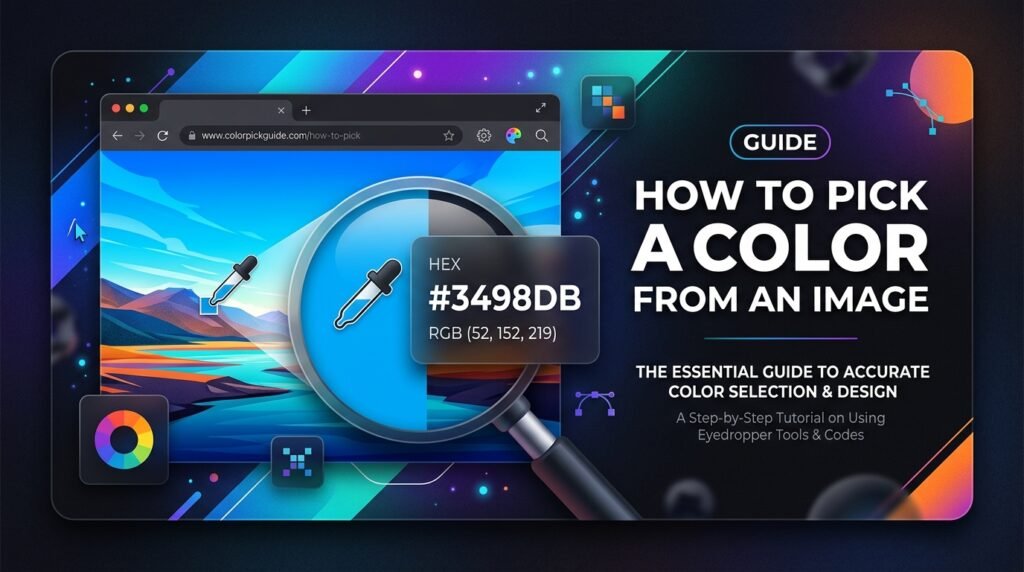
Learning how to pick a color from an image and extract its exact hexadecimal or RGB values is an essential skill for web developers, graphic artists, and UI designers. Whether matching a button to a brand photo, recreating a color palette, or identifying a background hue, digital color sampling eliminates guessing. Instead of eyeballing colors, an eyedropper tool inspects raw pixel data directly from your screen or uploaded asset.
Have you ever found a striking color in a photograph, logo, screenshot, or creative illustration that you wanted to reuse in your own project? Finding the precise color code manually is time-consuming and often inaccurate due to monitor calibration differences. When you pick a color from an image using an interactive sampler, the tool examines the numeric channel values stored in the image bitmap and translates them into web-ready notation.
You can use EzzDo’s free Color Picker from Image to inspect any photo or screenshot instantly in your browser sandbox with zero software installation and complete privacy. If you need to convert sampled results into different color spaces, EzzDo’s Color Code Converter provides seamless cross-format translation, while our HEX vs RGB vs HSL web colors guide explores color space mechanics.
Before implementing sampled values into production stylesheets, developers must understand how color values are captured, how file compression alters pixel data, and how to verify contrast accessibility. In this comprehensive guide, we examine the underlying technology behind image eyedropper sampling, analyze major web color formats, and explore best practices to pick a color from an image with absolute precision.
Table of Contents
What Is an Image Color Picker and How Does It Sample Pixels?
An image color picker is a specialized utility that enables users to select any individual pixel within a raster image and inspect its exact color values. Digital raster graphics—including PNG, JPEG, GIF, and WebP files—are structured as rectangular grids composed of millions of pixels. When you pick a color from an image, the eyedropper algorithm reads the red, green, and blue intensity values stored inside that specific coordinate location.
Depending on the tool interface, sampled results are commonly presented across several standard color formats:
- HEX (Hexadecimal): A compact six-digit alphanumeric code widely utilized in CSS, HTML markup, and front-end styling frameworks.
- RGB (Red, Green, Blue): An additive color model representing channel intensities as integer values ranging from 0 to 255.
- HSL (Hue, Saturation, Lightness): A coordinate model organizing colors based on human perceptual attributes rather than hardware channels.
- CMYK (Cyan, Magenta, Yellow, Key/Black): A subtractive color model utilized primarily in physical print production and offset lithography.
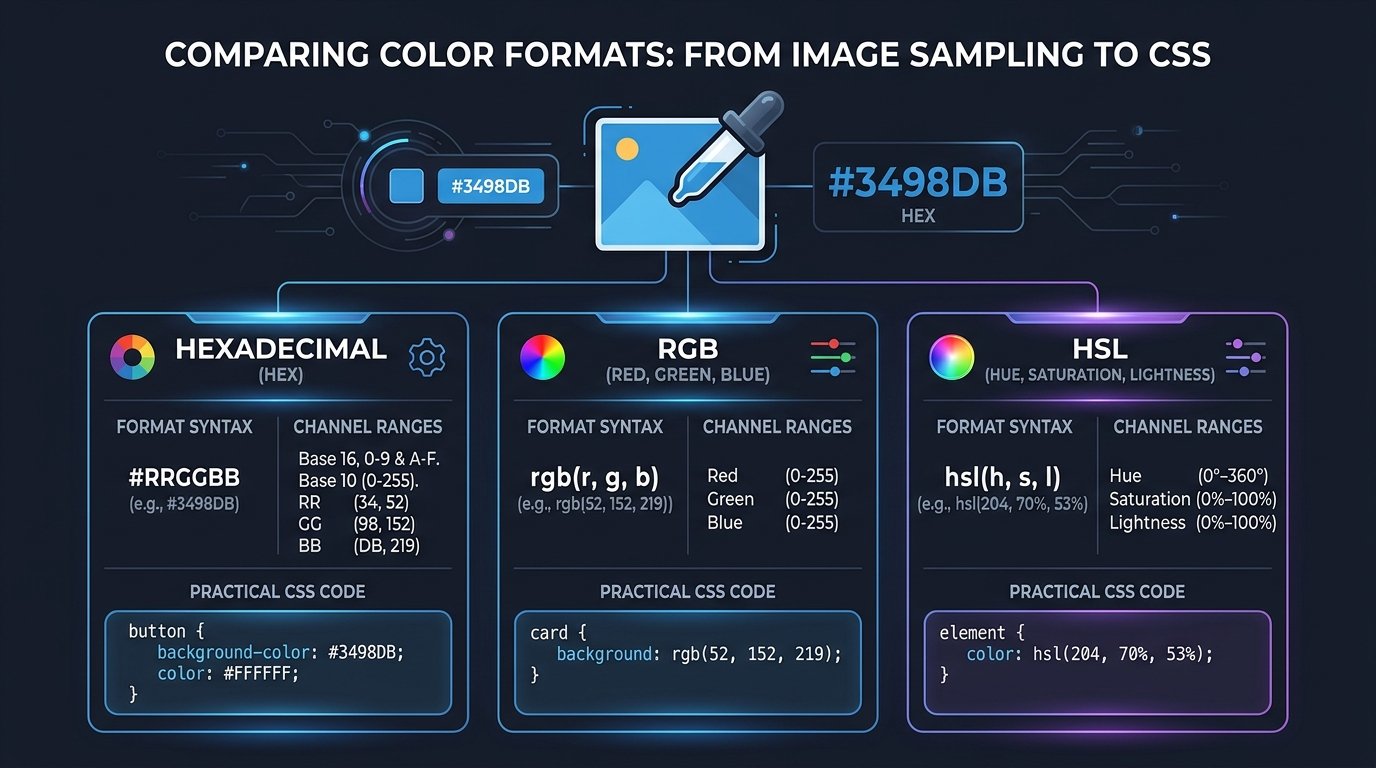
For example, if you sample a pixel containing a red value of 52, a green value of 152, and a blue value of 219, the picker produces:
RGB: rgb(52, 152, 219)
HEX: #3498DB
HSL: hsl(204, 70%, 53%)
These values describe the identical chromatic state expressed through differing notations. However, the exact result depends on which pixel you select. When you pick a color from an image, two nearby pixels may display slightly different colors because of lighting gradients, shadows, compression artifacts, or anti-aliasing.
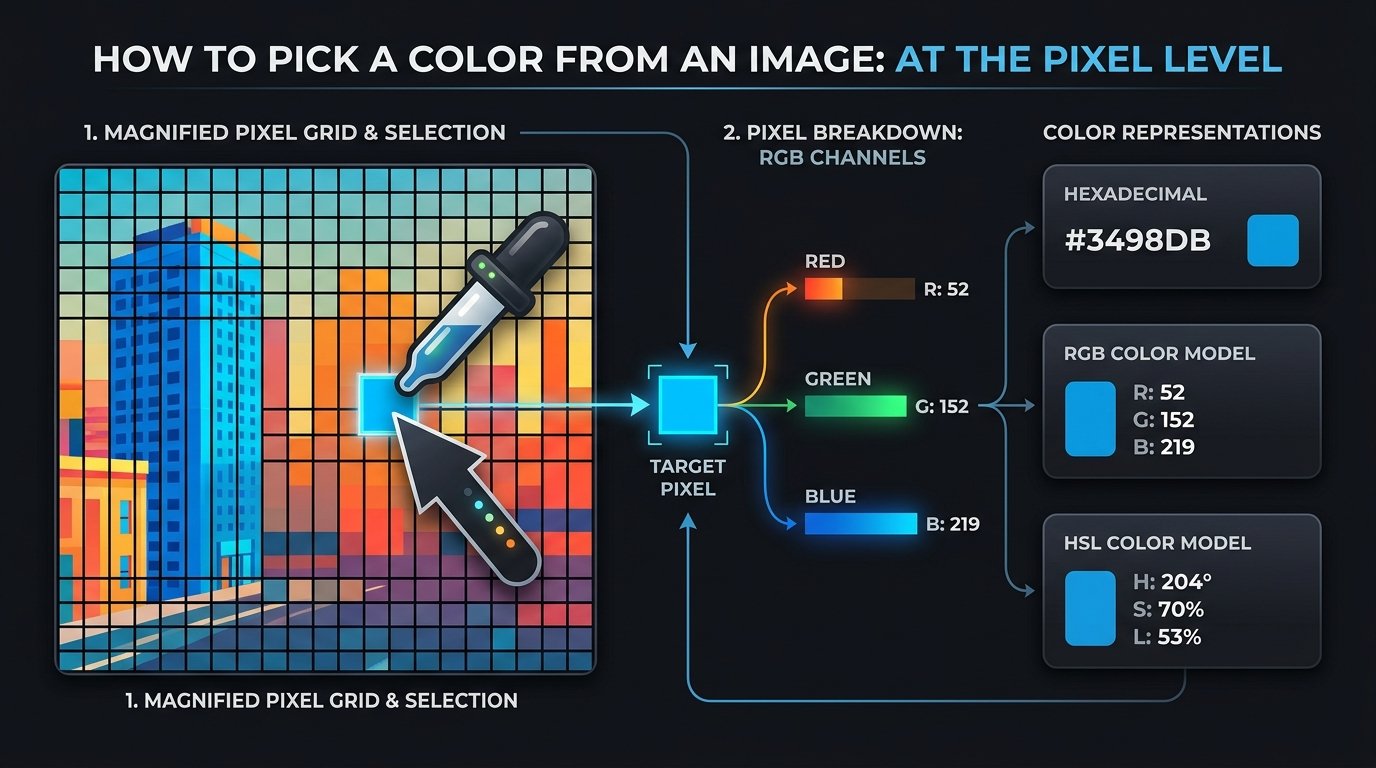
Under the hood, browser-based color samplers leverage the HTML5 Canvas element or modern native browser APIs such as the EyeDropper API specification to extract raw RGBA pixel arrays directly from client memory without transmitting media to remote servers.
How to Pick a Color from an Image: 7 Best Steps to Find HEX and RGB
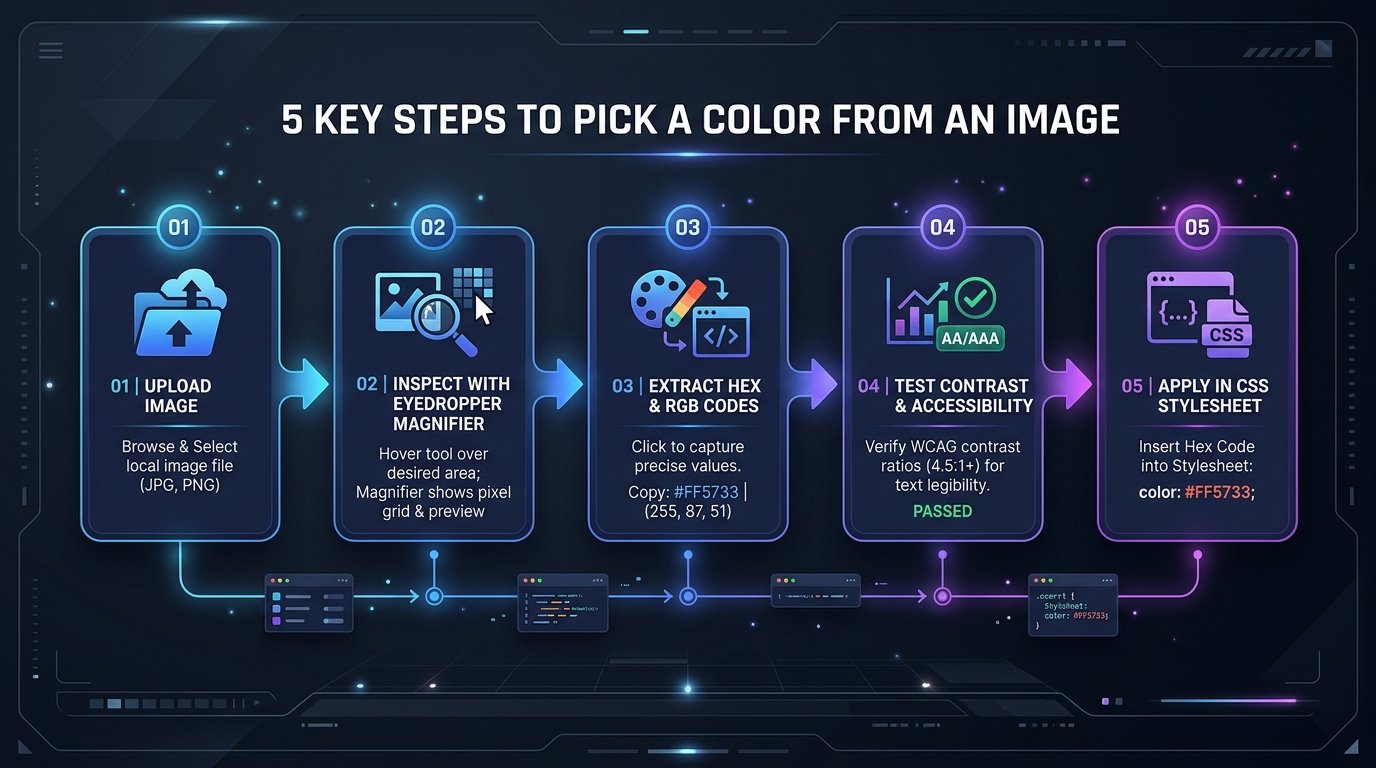
Follow these seven practical steps to identify colors accurately from any digital graphic, photo, or screenshot:
Step 1: Upload or Select Source Assets to Pick a Color from an Image
Open EzzDo’s free Color Picker from Image. Upload or select the image you want to inspect. Ensure the image loads at its true resolution rather than being resized by a compressed viewport.
Step 2: Locate the Target Color and Activate Magnification
Hover your cursor across the visual preview. The interactive loupe magnifier enlarges individual pixels surrounding your pointer, making it easy to isolate fine details and examine surrounding color transitions.
Step 3: Select a Flat, Consistent Surface Area
For the most accurate match, select a flat area with a consistent color rather than an edge, drop shadow, or gradient. Border pixels often blend with adjacent colors through anti-aliasing.
Step 4: Sample the Pixel and Review Displayed Values
Click your cursor directly on the relevant pixel. Review the displayed color values in the output panels, confirming that the preview swatch matches your intended hue across all channels.
Step 5: Copy the Needed HEX or RGB Code
Copy the HEX code (such as #3498DB) or RGB channel numbers directly to your clipboard using the quick-copy button. You can also paste the code into EzzDo’s Color Code Converter if you need CMYK or HSL conversions.
Step 6: Check Accessibility and Text Contrast Ratios
Before styling interfaces, confirm that the sampled color meets the W3C WCAG Contrast Minimum guidelines. Text requires at least a 4.5:1 contrast ratio against light or dark backgrounds for body copy, and 3:1 for large headlines.
Step 7: Test the Selected Color in Your Application
Whenever you pick a color from an image, test the resulting color in your website stylesheet or design software to verify how it interacts with surrounding interface elements across varying lighting conditions.
Anatomy of Color Models: Understanding HEX, RGB, and HSL Formats
When you pick a color from an image, modern design tools represent color data using three primary models. Understanding their mathematical structure ensures you use the best format for each coding situation.
Understanding HEX Color Codes
HEX is the most common way to represent colors in web development. A six-digit HEX color starts with a hash mark followed by three byte pairs: #RRGGBB. RR represents red, GG represents green, and BB represents blue. Each channel ranges from 00 to FF (decimal 0 to 255):
| Color Name | HEX Code | RGB Equivalent | Description |
|---|---|---|---|
| Pure Red | #FF0000 |
rgb(255, 0, 0) |
Full red intensity, green and blue off |
| Pure Green | #00FF00 |
rgb(0, 255, 0) |
Full green intensity, red and blue off |
| Pure Blue | #0000FF |
rgb(0, 0, 255) |
Full blue intensity, red and green off |
| Black | #000000 |
rgb(0, 0, 0) |
Absence of emitted light channels |
| White | #FFFFFF |
rgb(255, 255, 255) |
Maximum channel brightness |
| Ocean Blue | #3498DB |
rgb(52, 152, 219) |
Popular modern interface primary accent |
Understanding RGB Values
RGB represents colors using red, green, and blue values from 0 to 255. Example: .button { background-color: rgb(52, 152, 219); }. RGB is widely supported in CSS and modern graphical frameworks specified in W3C CSS Color Module Level 4. RGB notation also supports alpha opacity channels via rgba(), allowing designers to layer translucent elements over backgrounds.
Understanding HSL Values
HSL represents colors using hue, saturation, and lightness: .button { background-color: hsl(204, 70%, 53%); }. Hue describes the position on the color wheel (0° to 360°), saturation describes intensity (0% to 100%), and lightness describes brightness. When developers pick a color from an image and convert it to HSL, creating hover states or muted borders is effortless because you only need to adjust the lightness percentage.
Why Sampled Colors Look Different: Compression, Gradients, and Anti-Aliasing
While extracting a color from an image is simple, reproducing it perfectly can be complicated. When you pick a color from an image, several technical factors can cause visible differences:
- Image compression: Lossy JPEG and WebP compression alters pixel values. A solid color in the original design often degrades into slightly shifted pixels in a compressed screenshot.
- Gradients: Lighting gradients gradually change color across an area, producing different readings across nearby points.
- Shadows and transparency: Overlays and transparent layers make the visible color different from the original background.
- Display differences: Screen calibration, brightness settings, and color profiles affect how colors appear to the human eye.
- Anti-aliasing: Text and curved edges blend foreground with background pixels. Select the center of a solid shape rather than an edge.
Understanding these optical and mathematical dynamics ensures that when you pick a color from an image, you inspect flat, artifact-free pixel clusters to preserve chromatic integrity.
Selecting the center of a solid area ensures that when you pick a color from an image, surrounding compression artifacts and subpixel blending do not distort the extracted hexadecimal values.
Practical CSS Implementation: Applying Extracted Colors in Code
Suppose you identify this color: HEX: #3498DB, RGB: rgb(52, 152, 219), HSL: hsl(204, 70%, 53%). When you pick a color from an image, you can apply it directly to HTML components in CSS:
/* Using HEX */
.card { background-color: #3498DB; }

/* Using RGB */
.card { background-color: rgb(52, 152, 219); }

/* Using HSL */
.card { background-color: hsl(204, 70%, 53%); }
These examples represent the identical color subject to format rounding. Defining extracted values as CSS variables at the :root level enables clean, maintainable theme management:
:root {
  --brand-accent: #3498DB;
  --brand-accent-hover: hsl(204, 70%, 45%);
}

.btn-primary {
  background-color: var(--brand-accent);
  color: #ffffff;
}
.btn-primary:hover {
  background-color: var(--brand-accent-hover);
}
For full documentation on CSS color notation, check MDN Web Docs CSS color values.
Strategic Palette Architecture: Building Accessible and Cohesive Color Schemes
Picking a color from an image is often the first step in a larger design process. To build a consistent, professional color palette:
- Pick a primary color from the reference image.
- Identify a complementary background color with high readability.
- Choose a text color with sufficient contrast ratio (WCAG AA compliant).
- Select separate colors for borders, hover states, and secondary elements.
- Test the palette on both light and dark backgrounds.
- Check text contrast before using colors in an interface.
- Do not rely on color alone to communicate important information, such as form error messages.
Classic Color Harmony Models
When designers pick a color from an image, they frequently generate cohesive palette variations based on time-tested geometric relationships around the color wheel:
- Monochromatic: Variations in lightness and saturation using the exact same hue angle. Ideal for clean, minimalist user interfaces.
- Complementary: Two colors directly opposite each other on the 360-degree color wheel (such as blue and warm amber). Provides vibrant, high-energy visual contrast.
- Analogous: Colors sitting immediately adjacent on the color wheel (such as blue, teal, and cyan). Creates calm, organic visual transitions.
- Triadic: Three colors equally spaced at 120-degree intervals around the color wheel. Delivers rich visual diversity while maintaining aesthetic harmony.
Whenever you pick a color from an image, building secondary and neutral variants ensures that interface elements remain balanced, beautiful, and accessible across devices.
Technical Implementation: Browser EyeDropper API and HTML5 Canvas
Web applications allow users to sample colors using either the native browser EyeDropper API or an offscreen HTML5 canvas element:
// Native browser EyeDropper API
if ('EyeDropper' in window) {
  const eyeDropper = new EyeDropper();
  const result = await eyeDropper.open();
  console.log('Sampled color:', result.sRGBHex);
}
When you build tools to pick a color from an image, drawing the graphic onto an HTML5 canvas allows you to call getImageData() to inspect pixel data locally inside client memory without server latency.
Troubleshooting Color Extraction Pitfalls and Accuracy Errors
If the extracted color appears incorrect, check whether image compression or color space settings altered the pixel values. Working with lossless PNG assets prevents compression artifacts. When you pick a color from an image, always sample from unshaded, flat sections of the graphic to avoid optical distortion.
Display P3 vs sRGB Color Space Shifts
High-end digital displays and modern smartphone cameras capture photos using the wide-gamut Display P3 profile. Traditional web browsers and standard hex codes operate within the sRGB color space. When you pick a color from an image created in Display P3, standard sRGB clipping can slightly mute ultra-vibrant greens and reds. Ensure reference graphics are converted to sRGB before sampling to guarantee identical rendering across consumer monitors.
To ensure consistent chromatic reproduction when you pick a color from an image, always disable dynamic color shift extensions like Night Light during testing and verify swatches under neutral display calibration.
Production Checklist: How to Pick a Color from an Image Accurately
Before using sampled colors in production, verify these essential checks:
- Use high-resolution source images without heavy compression.
- Sample the center of solid color areas rather than blended edges.
- Record the color in both HEX and RGB formats.
- Verify WCAG text contrast ratios (minimum 4.5:1 for body copy).
- Test colors across different monitor calibrations and mobile devices.
- Store reusable values inside CSS variables for uniform maintenance.
Whenever modern front-end software architects pick a color from an image they also evaluate how to pick a color from an image and pick a color from an image while learning how to pick a color from an image across digital platforms automated algorithmic verification ensures consistent rendering integrity across all transactional templates and customer facing interfaces throughout the entire commercial.
Frequently Asked Questions About How to Pick a Color from an Image
Below are clear, expert answers to the most common questions front-end developers, graphic designers, and brand creators ask when extracting color codes from images.