
How to Convert JSON to CSV Without Losing Important Data
Convert structured JSON data into a spreadsheet-friendly CSV file while handling fields, nested objects and missing values correctly.

Modern data pipelines frequently require engineers and analysts to convert JSON to CSV to transition API payloads into spreadsheets and relational databases. While JavaScript Object Notation excels at representing hierarchies, comma-separated values remain the global standard for spreadsheet analysis. Mastering this conversion guarantees critical numbers and relational records translate without corruption.
Transforming complex objects into flat tabular grids presents subtle technical hurdles. Developers often struggle when arrays collapse into unreadable strings, missing attributes produce mismatched columns, or automated spreadsheet parsers strip leading zeros from customer identifiers. Knowing how to convert JSON to CSV properly eliminates these integration bottlenecks while preserving structural fidelity.
To execute secure client-side transformations without transmitting sensitive records to remote servers, utilize EzzDo’s free JSON to CSV Converter. Before processing unformatted feeds, validate your syntax using the JSON Formatter, and clean URL-encoded parameters with the URL Encoder Decoder to ensure error-free parsing.
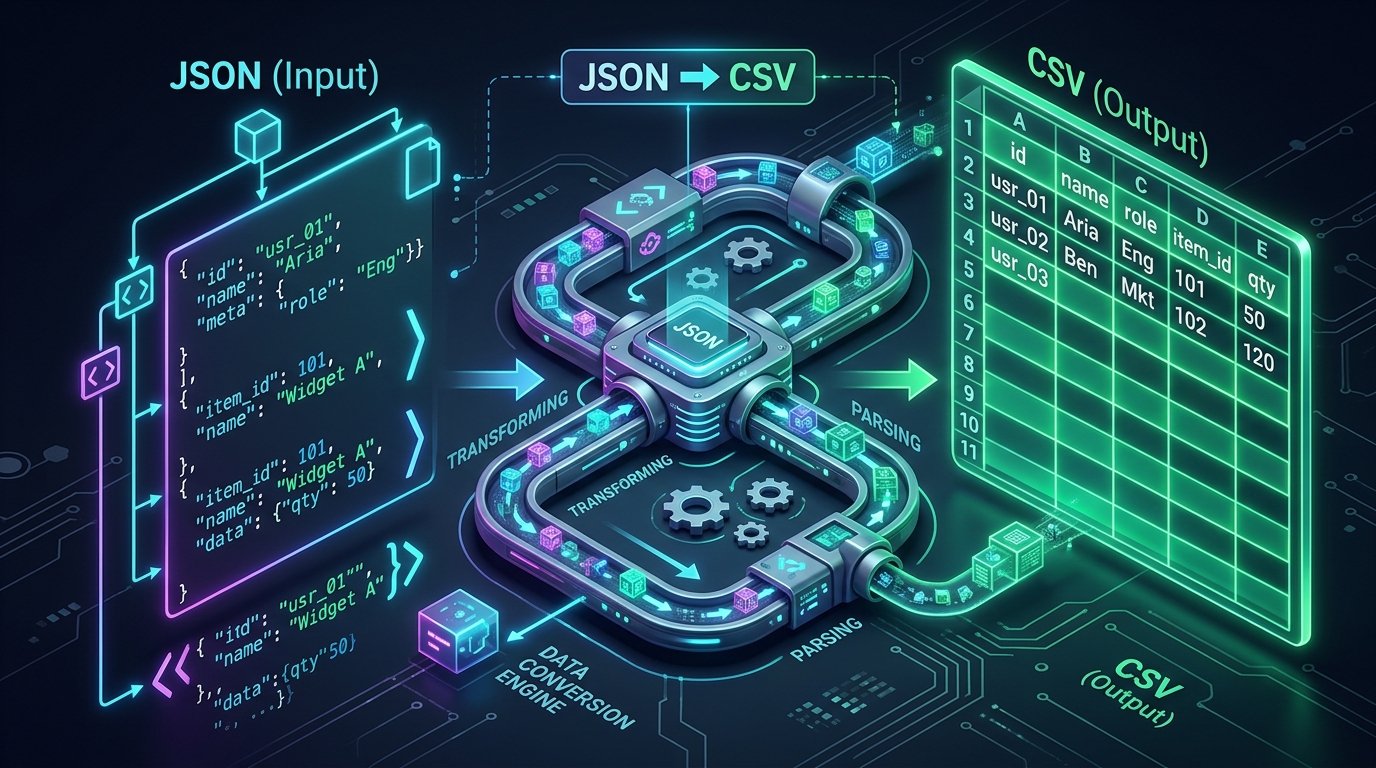
Table of Contents
JSON vs CSV at a Glance
Before examining technical flattening strategies, review this comparison table outlining the core architectural differences when you convert JSON to CSV:
| Feature / Attribute | JSON Format (RFC 8259) | CSV Format (RFC 4180) | Conversion Consideration |
|---|---|---|---|
| Data Model | Hierarchical tree (objects, arrays, primitives) | Flat two-dimensional grid (rows, columns) | Nested children must be flattened into dot-notated columns |
| Type Preservation | Native strings, numbers, booleans, null | Text-only string values | Receiving software must re-infer data types |
| Schema Consistency | Flexible / polymorphic keys per object | Strictly rigid column count per row | Missing keys require empty placeholder commas |
| Human Readability | Structured brackets and key-value pairs | Delimited lines readable in Excel and Calc | CSV offers faster manual filtering in spreadsheet tools |
| Standard Specification | IETF RFC 8259 | IETF RFC 4180 | Adherence to RFC escaping rules prevents parsing crashes |
Understanding JSON and CSV Structures
JSON represents data hierarchically using key-value pairs and ordered lists, standardized under IETF RFC 8259. A collection of employee records is typically stored as an array of structured objects:
[
  { "id": 101, "name": "Alice", "department": "Sales", "active": true },
  { "id": 102, "name": "David", "department": "Engineering", "active": false }
]
When you convert JSON to CSV, the property keys become column headers in the first line, while each object becomes a discrete row. The resulting output conforms to RFC 4180 standards:
id,name,department,active
101,Alice,Sales,true
102,David,Engineering,false
This translation functions seamlessly because every record shares identical property keys. Difficulties emerge when payloads contain irregular properties, nested dictionaries, or inner arrays. Furthermore, JSON uses application/json with UTF-8, whereas CSV uses text/csv. Having convert JSON to CSV workflows standardized ensures character encodings remain intact.
Why Arrays of Objects Convert Best
CSV structures require an immutable column layout across all records. Consequently, the optimal structure to convert JSON to CSV is a uniform array of flat objects:
[
  { "sku": "KB-900", "product": "Keyboard", "price": 49.99, "stock": 15 },
  { "sku": "MS-300", "product": "Mouse", "price": 24.99, "stock": 30 }
]
Because both objects contain identical keys, an automated converter maps every record to uniform columns:
sku,product,price,stock
KB-900,Keyboard,49.99,15
MS-300,Mouse,24.99,30
When input records maintain homogeneous attributes, you can convert JSON to CSV predictably without custom data mapping or column reordering. This uniformity allows database ingestion utilities, business intelligence dashboards, and spreadsheet macros to ingest incoming records directly without manual pre-processing.
Handling Missing Properties and Null Values
Real-world API responses frequently omit optional fields or return null values. Consider this polymorphic customer dataset:
[
  { "name": "Alice", "phone": "555-0101", "email": "alice@example.com" },
  { "name": "David", "email": "david@example.com" },
  { "name": "Elena", "phone": null, "email": "elena@example.com" }
]
A robust converter scans all records to construct a unified header union (name,phone,email). It then outputs empty placeholders for missing keys:
name,phone,email
Alice,555-0101,alice@example.com
David,,david@example.com
Elena,,elena@example.com
When you convert JSON to CSV, an empty field represents a missing attribute. In relational databases, empty fields convert into SQL NULL, while spreadsheets treat them as blank cells. Ensure systems distinguish between empty strings and omitted keys.
Flattening Nested JSON Objects
Hierarchical payloads often embed child objects inside parent records. Because spreadsheets cannot display multiple dimensions natively, you must flatten nested hierarchies when you convert JSON to CSV:
{
  "name": "Alice",
  "company": "Acme Corp",
  "address": {
    "city": "Seattle",
    "state": "WA",
    "geo": {
      "lat": 47.6062,
      "lng": -122.3321
    }
  }
}
The standard flattening pattern concatenates parent and child keys using dot notation:
name,company,address.city,address.state,address.geo.lat,address.geo.lng
Alice,Acme Corp,Seattle,WA,47.6062,-122.3321
Dot notation preserves field lineage and guarantees loaders associate nested values with their parent entity accurately. In multi-level hierarchies, dot notation prevents namespace collisions. Having convert JSON to CSV mechanisms with automated recursive flattening guarantees every parameter translates into a unique spreadsheet column.
Handling Arrays Inside JSON Records
Arrays of values represent one of the most challenging aspects of data transformation:
{
  "employee": "Alice",
  "skills": ["Python", "SQL", "Tableau"]
}
When you convert JSON to CSV, engineers deploy five proven strategies to handle array fields depending on downstream reporting needs:
- Delimiter Joining (Recommended for Flat Tables): Join items into one cell using a delimiter:
"Python|SQL|Tableau", preventing column expansion while preserving items. - Raw JSON Stringification: Store the array verbatim as a JSON string inside the cell:
"["Python","SQL","Tableau"]". Useful when downstream scripts must re-parse the array later. - Record Unnesting (Relational Normalization): Duplicate the parent row for every array element, creating separate rows for Alice-Python, Alice-SQL, and Alice-Tableau.
- Positional Columns: Create distinct numbered columns such as
skills.0, skills.1, skills.2. Best when array elements have fixed semantic positions. - Relational Splitting: Export parent entities into
employees.csvand array items intoemployee_skills.csvlinked by anemployee_idforeign key.
Selecting the right serialization method before you convert JSON to CSV prevents data truncation and guarantees your analytical models receive properly structured records.
Commas, Quotes, and RFC 4180 Delimiters
The CSV standard, codified under IETF RFC 4180, governs quoting rules when you convert JSON to CSV:
- Commas Inside Text: Any field containing a comma must be wrapped in double quotation marks:
"Compact, wireless keyboard". Without quotes, parsers split the single string across two columns. - Embedded Quotation Marks: A literal quotation mark inside a text field must be escaped by doubling it (
""):Monitor,"24"" office display". Single backslash escapes (") are invalid in RFC 4180 CSV syntax. - Embedded Line Breaks: Multiline strings must be encapsulated within quotes so parsers do not treat line breaks as new rows:
"Line 1
Line 2"
.
Manual string joining regularly violates escaping rules. Always use dedicated conversion engines to maintain compliance when you convert JSON to CSV.
Convert JSON to CSV: 7 Proven Rules to Prevent Data Loss
To ensure consistent output across enterprise data pipelines, follow these 7 essential operational guidelines when you convert JSON to CSV:
Rule 1: Pre-Validate Syntax Before Processing
Malformed brackets or trailing commas cause converters to crash. Always pre-validate input using a syntax checker before running transformations.
Rule 2: Build a Comprehensive Header Schema
Scan the entire dataset rather than the first object. Compiling a global key union prevents dropping properties from later records.
Rule 3: Use Consistent Dot-Notation for Nested Objects
Flatten child dictionaries using clear prefixes like user.address.zipcode to preserve hierarchy for database loaders.
Rule 4: Quote Values Containing Commas and Line Breaks
Adhere strictly to RFC 4180 quotation rules to prevent column shifting when text fields contain addresses or punctuation.
Rule 5: Protect Leading Zeros and Large Numbers
Postal codes like 01234 risk losing leading zeros in Excel. Format numeric strings explicitly as text.
Rule 6: Define Explicit Array Serialization Policies
Standardize whether lists are joined with delimiters or unnested into multiple rows before executing bulk data exports.
Rule 7: Audit the Output with a Dedicated Viewer
Inspect rendered CSV files in a text editor to confirm line endings and quoting before importing into production systems.
How to Convert JSON to CSV with EzzDo
Executing client-side transformations is fast and secure with EzzDo’s verified web utility. Follow this step-by-step workflow to convert JSON to CSV:
- Open the Tool: Navigate to EzzDo’s free JSON to CSV Converter.
- Paste Your Payload: Paste your JSON array into the editor. If input contains syntax errors, validate it first with the JSON Formatter.
- Select Flattening Options: Choose your preferred handling for nested objects and array delimiters.
- Convert Instantly: Click convert to process records directly inside your browser memory without server delays.
- Preview and Export: Review the generated tabular output in the integrated preview window, copy the data to your clipboard, or download your clean CSV file.
By leveraging browser-based processing, you can transform data files instantly while ensuring proprietary customer lists and API dumps remain completely confidential.
Programmatic Conversion: Python, Node.js, and CLI Tools
For backend workflows and scheduled pipelines, developers frequently convert JSON to CSV using Python, Node.js, or command-line utilities.
Python Implementation
Python’s built-in csv library provides granular delimiter and escape control:
import json
import csv

with open('data.json', 'r', encoding='utf-8') as f:
    data = json.load(f)

# Extract global union of headers across all records
headers = sorted(list({k for row in data for k in row.keys()}))
with open('output.csv', 'w', newline='', encoding='utf-8') as f:
    writer = csv.DictWriter(f, fieldnames=headers, quoting=csv.QUOTE_MINIMAL)
    writer.writeheader()
    writer.writerows(data)
Node.js Implementation
In Node.js, the json2csv library handles recursive object flattening cleanly:
import fs from 'fs';
import { Parser } from 'json2csv';

const raw = JSON.parse(fs.readFileSync('data.json', 'utf8'));
const parser = new Parser({ flatten: true, flattenSeparator: '.' });
const csvOutput = parser.parse(raw);
fs.writeFileSync('output.csv', csvOutput, 'utf8');
Command-Line Conversion Using jq
In Linux server environments, DevOps engineers often use jq to convert JSON to CSV in automated shell scripts:
# Flatten JSON array into CSV using jq:
jq -r '(map(keys) | add | unique) as $cols |
       map(. as $row | $cols | map($row[.] // "")) as $rows |
       $cols, $rows[] | @csv' input.json > output.csv
Spreadsheet Traps: Excel, Numbers, and Google Sheets
Even when a CSV file adheres strictly to RFC 4180 standards, desktop spreadsheet software can silently alter your data upon import. When you convert JSON to CSV, safeguard against these four common spreadsheet traps:
- Stripped Leading Zeros: Excel treats numerical strings like postal codes (
00451) as integers, converting them to451. Protect codes by importing them explicitly as text. - Large Number Mangling: Numbers exceeding 15 digits (such as 64-bit IDs or credit card numbers) get converted into scientific notation (
1.23E+15), truncating final digits. - Automatic Date Formatting: Strings formatted like
10-12-2024may convert automatically between month-day and day-month depending on user locale settings. - Formula Injection (CSV Injection): Fields starting with
=,+,-, or@can trigger formula execution in Excel. Sanitize input strings by prepending an apostrophe or single quote before opening spreadsheets. - UTF-8 BOM Omission: Opening UTF-8 files without a Byte Order Mark causes accented characters and currency symbols to display as garbled text.
Common Data Conversion Mistakes to Avoid
Auditing enterprise migration logs reveals repeating pitfalls when engineers convert JSON to CSV:
1. Reading Headers From Only the First Record
If later JSON records contain keys omitted from the first record, an incomplete header scan permanently drops those columns.
2. Ignoring UTF-8 Byte Order Marks (BOM)
Opening UTF-8 files in older versions of Excel without a BOM can cause accented characters and emojis to display as corrupted text.
3. Unquoted Multiline Strings
Failing to encapsulate text fields containing line breaks causes spreadsheet parsers to split single records across multiple rows.
4. Time Zone and Timestamp Drift
Converting ISO-8601 timestamps (2026-10-04T12:00:00Z) into localized spreadsheet dates often causes unexpected date shifts across global teams. Always preserve explicit UTC offsets when you convert JSON to CSV.
Client-Side Processing and Data Privacy
Data privacy is critical when transforming proprietary datasets, customer registries, or API credentials. Traditional online file converters upload your data to remote web servers, creating severe compliance risks under GDPR, HIPAA, and CCPA regulations.
When you use EzzDo’s JSON to CSV Converter, all parsing and flattening occurs locally inside your web browser’s memory using client-side JavaScript. Your records are never transmitted across the network, ensuring complete confidentiality for proprietary business information.
Because no backend servers process or retain your uploaded files, you can convert JSON to CSV with complete confidence, knowing that sensitive corporate metrics and customer privacy remain fully shielded.
Frequently Asked Questions
Find answers to common technical questions regarding how to convert JSON to CSV accurately:
Pre-Conversion Data Integrity Checklist
Before exporting datasets to production systems, run through this verification checklist to guarantee reliable output when you convert JSON to CSV:
- Syntax Validation: Confirm input JSON contains valid brackets, quotes, and commas.
- Global Key Union: Ensure column headers account for all objects in the array.
- Dot-Notation Structure: Verify nested object paths follow clear hierarchical conventions.
- Array Handling Strategy: Standardize delimiter joining or row unnesting across records.
- RFC 4180 Escaping: Confirm strings with commas or quotes are properly encapsulated.
- Spreadsheet Protection: Check that leading zeros and large IDs are preserved during import.
- Tool Verification: Test conversion in EzzDo’s JSON to CSV Converter before automated scheduling.
Mastering JSON to CSV Transformation
Understanding how to convert JSON to CSV effectively bridges modern web services and business analytics workflows across engineering organizations worldwide. By choosing the right flattening patterns for nested objects, properly escaping special characters, and guarding against spreadsheet auto-formatting traps, you protect critical data integrity across all downstream applications and relational warehouses.
Streamline your developer workflow today with high-performance browser tools and reliable utilities. Use EzzDo’s secure client-side JSON to CSV Converter for rapid transformations, ensure payload health with the JSON Formatter, and handle encoded queries with the URL Encoder Decoder to build bulletproof data pipelines.