
Merge PDF Files Without Uploading: 5 Easy Steps
merge PDF files privately in your browser without uploading documents to a remote server, creating an account, or adding watermarks.
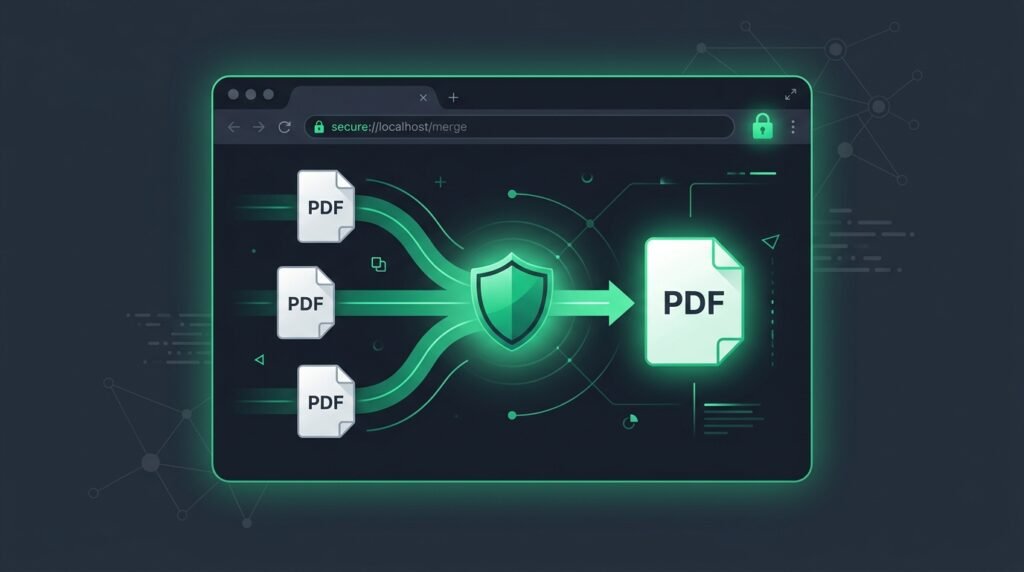
When managing contracts, financial statements, business invoices, or confidential records, learning how to merge PDF files without uploading them to a remote server is one of the most effective ways to safeguard sensitive information. Combining multiple documents into one cohesive file keeps your digital workflow organized while eliminating the severe privacy risks associated with third-party cloud converters.
However, the vast majority of conventional online document utilities require you to transmit your files across the internet to external cloud storage before processing them. For legal professionals, accountants, healthcare providers, and privacy-conscious users, sending private records to unverified servers creates unnecessary compliance and security vulnerabilities. A modern browser-based workflow allows you to merge PDF files without uploading any data to external servers, handling every byte right on your own machine.
By leveraging client-side WebAssembly and modern browser memory APIs, you can quickly merge PDF files without uploading documents to remote infrastructure. In this comprehensive guide, we examine the inner mechanics of browser-based document processing, provide a step-by-step tutorial, review crucial pre-merge checklists, inspect PDF internal architecture, and address common troubleshooting scenarios.
Table of Contents
What Does Browser-Based PDF Processing Mean?
To understand why it is advantageous to merge PDF files without uploading, it is helpful to contrast how legacy web applications operate versus modern client-side architectures. In a conventional cloud conversion workflow, selecting a file triggers an HTTP POST request that transmits your complete document across the internet to an external server cluster.
Once on the remote server, third-party backend scripts (such as Ghostscript, Poppler, or proprietary command-line utilities) read the PDF data, execute the combine command, write temporary files to a server-side storage disk, and return a download link. During this transit and processing cycle, your documents sit on external hard drives, subject to server-side logging, caching systems, automated backups, and potential exposure to unauthorized third parties.
In sharp contrast, browser-based document tools allow you to merge PDF files without uploading by executing compiled JavaScript and WebAssembly (Wasm) routines directly inside your local browser engine. The application utilizes standardized MDN FileReader APIs and W3C File API standards to read binary data directly into local device RAM.
When you choose to merge PDF files without uploading using EzzDo’s PDF Merge tool, the document compilation takes place entirely inside an isolated browser sandbox. Not a single packet of document data is transmitted over the network. This architecture provides distinct advantages:
- Complete Local Isolation: Your source files remain in your local computer or phone memory throughout the entire operation.
- Zero Network Latency: Because you merge PDF files without uploading multi-megabyte payloads, processing begins instantaneously without waiting for slow file transfers.
- Guaranteed Confidentiality: Trade secrets, tax filings, legal agreements, and patient records are never exposed to remote databases.
- No Registration Barriers: You can merge PDF files without uploading personal email addresses, creating passwords, or subscribing to recurring monthly plans.
- Pure Output Without Watermarks: The final synthesized document is completely clean and free of promotional watermarks or stamps.
Why You Should Merge PDF Files Without Uploading (Privacy & Compliance)
Data privacy is no longer optional for modern enterprises and professionals. Whether you operate a small business, work in a legal firm, or manage medical records, sending unencrypted client information to random internet servers can lead to catastrophic legal and financial repercussions.
When you merge PDF files without uploading, you adhere directly to the fundamental data protection principle of data minimization. The moment you eliminate the cloud intermediary, you simultaneously eliminate numerous compliance liabilities:
- GDPR Compliance (Articles 5 & 32): The European General Data Protection Regulation mandates strict safeguards for personal data. Transmitting European citizen records to unverified foreign servers creates illegal data processor relationships. Using local browser tools ensures full data sovereignty.
- HIPAA Safeguards (45 CFR § 164.312): Healthcare providers handling Protected Health Information (PHI) cannot transmit records to services without signed Business Associate Agreements (BAAs). In-browser tools keep patient charts securely contained on local hospital workstations.
- Attorney-Client Privilege: Law firms cannot risk waiving evidentiary privilege by sharing confidential discovery exhibits or settlement agreements with unaccredited third-party file converters. Choosing to merge PDF files without uploading guarantees evidentiary integrity.
- Financial & Accounting Audits (SOX / SOC 2): Corporate governance policies strictly forbid staff from exposing quarterly earnings drafts, payroll records, or balance sheets to shadow IT web utilities.
Beyond regulatory protection, the decision to merge PDF files without uploading delivers superior operational efficiency. When working remotely, traveling on public trains, or using metered cellular hotspots, uploading ten high-resolution PDF scans can consume hundreds of megabytes of costly bandwidth. Local processing consumes zero cellular data because the files are already stored locally on your hard drive.
Step-by-Step: How to Merge PDF Files Without Uploading (5 Easy Steps)
Synthesizing multiple independent documents into a single professional PDF takes only a few seconds. Follow these five straightforward steps to merge PDF files without uploading using EzzDo’s free utility:
- Step 1: Open the In-Browser Utility: Launch your preferred web browser (Google Chrome, Mozilla Firefox, Apple Safari, or Microsoft Edge) and open EzzDo’s private PDF Merge tool.
- Step 2: Select Your Target PDF Documents: Drag and drop your files directly into the active dashed workspace, or click the file picker button to select multiple PDF files simultaneously from your local hard drive or mobile storage.
- Step 3: Arrange the Document Sequence: Review the document queue cards. Use the interactive Move Up and Move Down controls to order the files precisely into your desired final reading order.
- Step 4: Execute the In-Memory Merge: Click the green Merge PDFs button. The local client-side engine parses the binary page trees and combines them in your computer’s temporary RAM in milliseconds.
- Step 5: Download the Merged Document: Click Download Merged PDF to save the unified file directly to your downloads folder. Your original source files remain completely untouched on your device.
Because you merge PDF files without uploading, this five-step sequence works identically on desktop operating systems (Windows 11, macOS Sequoia, Linux Ubuntu) as well as mobile devices (Apple iOS Safari and Android Chrome). You enjoy complete desktop-class document assembly without installing bulky native software suites.
Inside the PDF Specification: How Document Merging Works Internally
To appreciate how a browser engine can merge PDF files without uploading, it is valuable to examine the internal data architecture defined by the official ISO 32000-2 PDF specification. Contrary to popular belief, a PDF is not a flat image or continuous text stream; it is a structured object-oriented database containing four primary sections:
- Header: Defines the PDF format version specification (e.g.,
%PDF-1.7or%PDF-2.0). - Body Objects: A collection of numbered indirect objects containing content streams, font dictionaries, embedded JPEG/PNG image streams, metadata, and color spaces.
- Cross-Reference Table (XRef): A lookup index that maps each object number to its exact byte offset in the file, enabling random access without reading the whole document.
- Trailer: Contains the
/Rootpointer referencing the Catalog dictionary and points to the starting byte of the cross-reference table.
When you merge PDF files without uploading in a client-side environment, the JavaScript engine performs several sophisticated low-level data manipulations entirely in device memory:
- Object ID Re-Indexing: File A and File B both contain objects numbered
1 0 obj,2 0 obj, and so on. If simply concatenated, object number collisions would corrupt the document. The merger scans File B, calculates the highest existing object index from File A, and offsets all indirect references accordingly. - Page Tree Synthesis: Every PDF contains a hierarchical
/Pagesdictionary tree. When you merge PDF files without uploading, the engine constructs a new master/Pagesroot node, appends each source document’s page leaves to the/Kidsarray, and updates the total/Countvalue. - Resource Preservation: The merger carries over essential font descriptors, CMYK/RGB ICC profiles, and ExtGState transparency attributes, ensuring that visual fidelity remains pixel-perfect.
- XRef Rebuilding & Serialization: A unified cross-reference table is generated, calculating exact byte offsets for every merged object before outputting a pristine binary blob ready for download.
Performing these operations locally eliminates the computational overhead of network serialization, demonstrating why it is both technically elegant and remarkably fast to merge PDF files without uploading.
Cloud-Based vs. In-Browser PDF Merging: Comprehensive Comparison
When deciding whether to adopt cloud converters or client-side utilities, comparing their structural differences across performance, security, and financial dimensions highlights clear distinctions:
| Operational Dimension | Conventional Cloud Converter | EzzDo Client-Side Merge |
|---|---|---|
| Data Transmission | Uploaded to remote web servers | 100% Local (Zero uploads) |
| Server Retention Window | Stored on cloud disks for 1–24 hours | Zero server retention (Never touched) |
| Execution Speed | Limited by upload and download bandwidth | Near-instantaneous RAM speed |
| Cellular Data Consumption | High (Transfers files twice over network) | Virtually Zero network bandwidth |
| Account & Credit Cards | Frequently gated behind paywalls | Completely free, no account needed |
| Document Watermarking | Often stamps third-party logos on free tiers | Clean output with zero watermarks |
| Compliance Friendliness | Requires strict vendor privacy audits | Inherently compliant with GDPR & HIPAA |
As the comparison table illustrates, when you merge PDF files without uploading, you attain complete control over your document lifecycle while eliminating unnecessary subscriptions and recurring costs.
Crucial Checklist: Check Document Order and Preparation Before Merging
A poorly sequenced PDF can look unprofessional to clients, investors, or court clerks. Re-running a merge process because a page is upside down or out of sequence wastes valuable time. Before you merge PDF files without uploading, follow this comprehensive pre-merge checklist:
- 1. Front-Matter Hierarchy: Confirm that title covers, executive summaries, tables of contents, or transmittal letters occupy the initial positions in your queue.
- 2. Chronological Alignment: When compiling receipts, statements, or project milestones, check that dates run in logical ascending or descending order.
- 3. Supporting Appendices: Ensure supplementary documents, technical schematics, glossaries, and exhibit certifications are positioned at the end of the stack.
- 4. File Integrity & Corruption Check: Open each individual file beforehand to verify that the file opens cleanly in your default PDF reader and contains no blank error pages.
- 5. Password Restrictions: Ensure none of the documents require an owner or user password. If a file is locked, decrypt it prior to merging.
- 6. Filename Clarity: Rename your source files with clear numerical prefixes (such as
01-cover.pdf,02-proposal.pdf,03-terms.pdf) to make ordering in the web queue effortless.
By reviewing this checklist before you merge PDF files without uploading, you ensure your finalized file looks polished, coherent, and ready for immediate distribution.
Key Use Cases: When You Need to Merge PDF Files Without Uploading
Combining multiple PDF documents into a singular file is a daily necessity across virtually every industry. Here are the most prominent professional use cases where the ability to merge PDF files without uploading proves indispensable:
- Legal Discovery & Court Filings: Litigation attorneys and paralegals must merge pleadings, exhibits, affidavits, and tables of authorities into single indexed filings. Using client-side tools preserves strict attorney work-product privilege.
- Accounting, Tax, and Financial Audits: Certified public accountants (CPAs) combine client W-2s, 1099s, expense receipts, and balance sheets into unified tax year packages. The ability to merge PDF files without uploading safeguards bank account numbers and tax identification numbers.
- Real Estate Closings & Mortgages: Title agents and loan officers combine promissory notes, inspection reports, title insurance binders, and deed transfers into a unified loan package for buyers and underwriters.
- Job and Academic Applications: Job seekers compile resumes, tailored cover letters, recommendation letters, and official college transcripts into one clean submission file, ensuring hiring managers review materials in the exact intended order.
- Medical Practice Records: Medical clinics merge patient intake forms, insurance cards, laboratory results, and physician notes before transferring files to primary physicians, maintaining strict HIPAA privacy safeguards.
- Software & Product Documentation: Engineers merge software architecture diagrams, API specifications, and user manuals into consolidated release notes. When managing developer documentation, you might also enjoy our companion guide on common JSON formatting errors and how to fix them.
In all these critical workflows, the ability to merge PDF files without uploading provides peace of mind that proprietary data never leaves organizational custody.
Pre-Merge Toolkit: Splitting, Rotating, and Cleaning Pages
Frequently, raw documents contain unwanted content: blank back pages, upside-down scanner feeds, or sensitive internal addenda that should not appear in the finished client presentation. EzzDo offers a suite of private, client-side document utilities designed to prepare your files before you merge PDF files without uploading:
- Extract Select Page Ranges: If you only need chapters 2 through 4 from a 100-page manual, use our PDF Split tool to cleanly extract the required section before adding it to your merge queue.
- Correct Sideways & Upside-Down Scans: Scanners often ingest pages in landscape orientation. Correct rotation angles instantly using our client-side PDF Rotate tool.
- Strip Redundant Pages: Discard blank trailing pages, outdated terms sheets, or redundant covers using our browser-based PDF Delete Pages tool.
Explore our complete ecosystem of free, zero-upload document utilities in the EzzDo PDF Utilities collection to build a modern, secure document workflow.
Troubleshooting Common Issues When Merging PDF Documents
While the process to merge PDF files without uploading is remarkably streamlined, occasional document inconsistencies can arise due to differences in PDF creation software. Here is how to diagnose and resolve the most common issues:
- 1. Password-Protected or Encrypted Files: Standard PDF specifications permit user passwords (to open) and owner passwords (to edit). Because client-side tools respect standard security flags, an encrypted PDF cannot be parsed without authorization. To resolve this, open the protected file in your desktop PDF viewer, enter the password, and re-save an unencrypted copy before attempting to merge PDF files without uploading.
- 2. Excessive Memory Consumption on Mobile Devices: If you attempt to merge twenty 50MB uncompressed raw scans on an older smartphone, the mobile browser tab may crash due to operating system RAM limits. To prevent this, downsample high-DPI scans from 600 DPI to 300 DPI, or perform the merge on a desktop computer with ample physical memory.
- 3. Interactive AcroForm Field Collisions: If two merged PDF forms both contain interactive form fields with identical names (such as
SignatureorDate), the second form might inherit the first form’s values. To avoid field collisions, “print to PDF” on your computer to flatten interactive form fields into static vector artwork prior to merging. - 4. Inconsistent Page Orientations & Dimensions: Combining a standard Letter-sized document (8.5 x 11 inches) with an architectural blueprint (24 x 36 inches) is fully supported by the PDF specification. Each page retains its independent
/MediaBoxdimensions. However, if you prefer visual uniformity, rotate landscape sheets using our rotate utility before you merge PDF files without uploading. - 5. Corrupted Source Files or Broken Cross-References: If a document was incompletely downloaded or damaged during transfer, the browser parser may report an “invalid XRef table” error. Re-downloading the original source file or re-exporting it from its native software resolves the issue immediately.
Addressing these edge cases ensures seamless results every single time you merge PDF files without uploading for your business or academic needs.
Device Security Best Practices for In-Browser Document Handling
While client-side processing eliminates remote server transmission risks, security remains an end-to-end discipline. Because your computer’s local memory handles the active file data when you merge PDF files without uploading, following sensible device hygiene ensures unassailable data protection:
- Refrain from Using Shared Public Computers: Never process confidential tax documents, payroll spreadsheets, or medical records on shared hotel business center kiosks or public library workstations.
- Secure Local Downloads: Configure your browser to store downloads in an encrypted local user folder rather than an exposed shared directory.
- Enable Full-Disk Encryption: Ensure your computer operating system utilizes built-in encryption, such as BitLocker on Windows or FileVault on macOS.
- Keep Browsers Updated: Regularly update Chrome, Firefox, Safari, or Edge to receive the latest security patches and WebAssembly performance optimizations.
- Maintain Original Backups: Always preserve original source files in a secondary backup directory until you have opened and verified the merged document.
Following these simple guidelines guarantees that every time you merge PDF files without uploading, your sensitive records remain fully protected from unauthorized access.
Frequently Asked Questions (FAQ)
Can I merge PDF files without uploading documents to any remote server?
Yes, absolutely. EzzDo’s PDF Merge tool operates entirely within your web browser using client-side JavaScript and WebAssembly. Your files are read into local device memory and synthesized locally without transferring a single byte over the internet.
Is there a limit on how many files I can combine?
Because you merge PDF files without uploading to a server, there are no artificial file upload counters or server bandwidth throttling caps. The only practical limitation is your device’s available RAM memory.
Will the merging process reduce my document visual quality?
No. The local merger does not compress, downsample, or rasterize your pages. Embedded vector artwork, typography, and high-resolution images are transferred into the new document structure at 100% original fidelity.
Can I merge PDF files without uploading on iPhone, iPad, or Android?
Yes. Modern mobile browsers like Safari on iOS and Chrome on Android fully support client-side file reading and WebAssembly execution, allowing you to merge PDF files without uploading directly on your mobile device.
Does EzzDo add watermarks or branding to my merged PDF?
No. When you merge PDF files without uploading using EzzDo, your output document is completely clean with zero watermarks, stamps, or advertising banners.
Do I need to create an account or provide an email address?
No. There are no registration forms, subscriptions, credit card prompts, or daily usage caps. You can merge PDF files without uploading completely free of charge at any time.
Can I merge scanned documents and receipts?
Yes. Scanned PDFs are fully supported as long as they are valid PDF files. High-resolution scans will retain their original clarity throughout the merge process.
What happens to my documents after I close the browser tab?
Because files are held exclusively in temporary browser RAM, closing or refreshing the browser tab instantly flushes all document data from memory. No residual files remain on any server.
How fast is the in-browser merging process compared to cloud tools?
It is substantially faster. Conventional cloud tools force you to wait while your documents upload over your internet connection and then re-download the merged output. When you merge PDF files without uploading, processing executes in fractions of a second.
Is it legal to use client-side tools for GDPR and HIPAA regulated data?
Yes. In fact, privacy professionals actively recommend client-side utilities because eliminating third-party cloud data transmission removes data exposure risks and preserves regulatory compliance.
Merge Your PDF Files Privately Today
Whenever you need to combine legal filings, business invoices, personal tax returns, or university portfolios, you no longer have to compromise on data security or pay for expensive cloud subscriptions. Experience the speed, safety, and convenience of client-side document processing: open EzzDo’s PDF Merge tool and merge PDF files without uploading your private records today.